

A bright meeting room can feel welcoming until a presenter opens a detailed slide and the image almost disappears. The solution is not always a more powerful projector or complete darkness. Presentation visibility depends on the room, screen, light, seating and the material being shown. Test these elements together before confirming how a session will work. A practical demonstration with realistic content tells you more than an impressive equipment specification that was measured under conditions unlike the event you are planning.
Begin with the material people must understand
Ask the presenter which visual details are essential. Large photographs, a short headline and a spreadsheet with many columns create different viewing demands. Select a representative slide containing the smallest meaningful text or the most subtle contrast the audience will need to interpret. If the speaker has not prepared the presentation yet, use a realistic outline rather than a promotional image chosen because it will look attractive in any room.
Clarify whether the screen supports spoken explanation or carries information participants must inspect independently. A slide displaying a complex diagram may need a separate accessible handout or a simpler sequence of images. Treat visibility as a content question as well as a technical one. If the audience cannot recover the argument without reading tiny details, the presentation may need redesign even when the venue's equipment performs exactly as intended.
Test at the time the session will run
Visit when the room's natural light resembles the planned session where possible. A demonstration early in the morning may not reveal glare from a window later in the day. Ask venue staff about seasonal changes and the effect of neighbouring spaces. Keep the exact event date and time in the discussion, while recognising that a visit cannot reproduce every weather condition that might occur during the actual programme.

Inspect curtains, blinds and lighting controls in use rather than accepting that they exist somewhere in the room. Ask who operates them and whether control affects the entire space or separate zones. A blind that requires specialist access or a lighting scene controlled from another room changes how quickly an adjustment can happen. Record the workable settings and a contact who can help if conditions differ when the audience arrives.
Look from the difficult seats
Stand or sit at the back, the sides and any position with an awkward viewing angle. Check the lowest part of the screen when other people are seated ahead. A screen can look clear from beside the projector while being unreadable from a place participants will actually occupy. Use the proposed furniture arrangement, because moving tables or adding a stage can change both sightlines and the space available for an alternative screen position.
Consider reflections and competing light sources. A glossy display near a window may reflect the room rather than show the image clearly to everyone. Ask the venue's technician to advise on positioning instead of improvising with furniture or attaching coverings to equipment. Explain which audience positions must remain usable, including spaces selected for access reasons, so an adjustment does not solve the central view by making another participant's position worse.
Balance screen contrast with participation
Completely darkening the room may improve one image while making note-taking, lip-reading or safe movement more difficult. Work with staff to preserve appropriate light for the activity and the people taking part. A presentation followed by table work may need several deliberate lighting settings. Agree how those transitions are operated and who will request them, rather than asking the presenter to manage an unfamiliar control system while speaking.
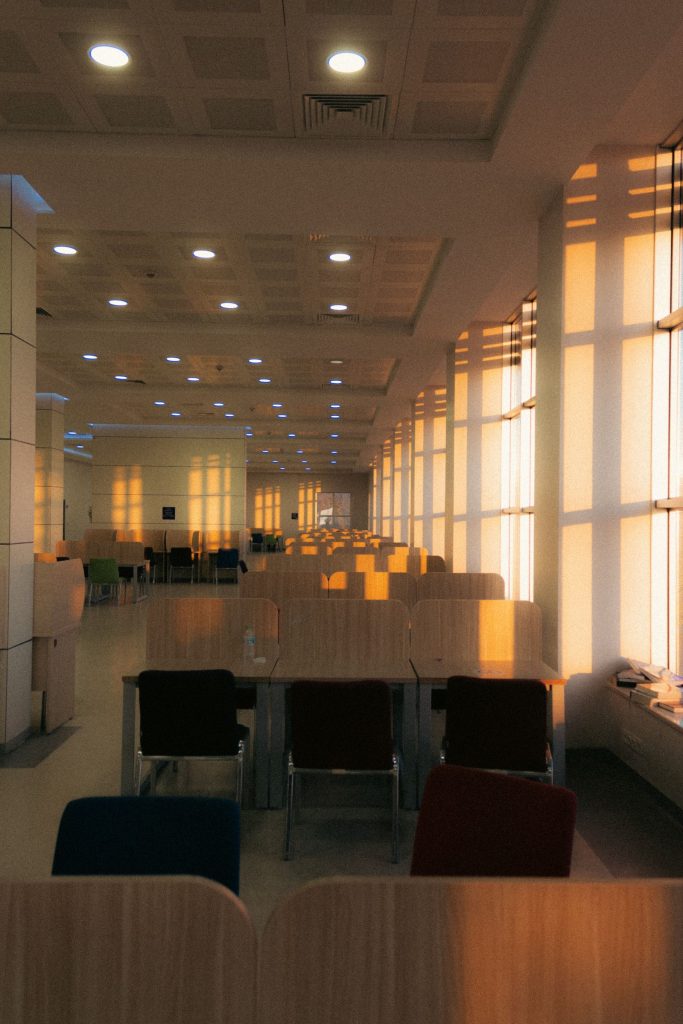
Ask speakers to use readable type and clear contrast, and to explain important visual content aloud. W3C's guidance on accessible presentations offers a useful framework for this preparation. The screen should not become the only route to meaning. A speaker who describes the relevant part of a chart and provides usable material in advance reduces the impact of both imperfect room conditions and differences in how participants access the information.
Check connections without confusing them with visibility
Test the actual device, connection and presentation format that will be used. A clear test image from the venue's computer does not confirm that a presenter's laptop will produce the same result. Check aspect ratio, scaling and any video content. Keep the test focused on how the audience sees the material, not merely on whether an image appears somewhere on the screen after several attempts to connect.
Prepare a suitable backup file and agree who can open it if the main device fails. Avoid depending on a last-minute download over an untested connection. If the session includes confidential material, use the approved transfer process and confirm who retains copies. A fallback should preserve the presentation's essential purpose without requiring staff to bypass ordinary access controls or move sensitive files through a personal account for convenience.
Make a decision that includes the alternatives
After testing, list the remaining limits and the available responses. You may simplify slides, move the screen, change seating, use a different display or choose another room. Compare the effort and effect of each choice. A beautiful space can still be unsuitable for a particular technical session, while a modest room can work well when its layout and equipment match what participants need to understand.
Record the agreed setup with a simple drawing and the names of the relevant files or test slides. Share it with the presenter and venue contact before the event. On the day, make a short final check from the audience area after furniture and lighting are in place. The aim is not a flawless image for its own sake, but a session in which the visual material helps people follow and use the ideas being presented.